> ## Documentation Index
> Fetch the complete documentation index at: https://docs.suiet.app/llms.txt
> Use this file to discover all available pages before exploring further.
# Using hardware wallets with Suiet
> Guide to connect and use hardware wallets with Suiet
 To use hardware wallet on Suiet, please ensure you're running Suiet version
0.3.0 or higher.
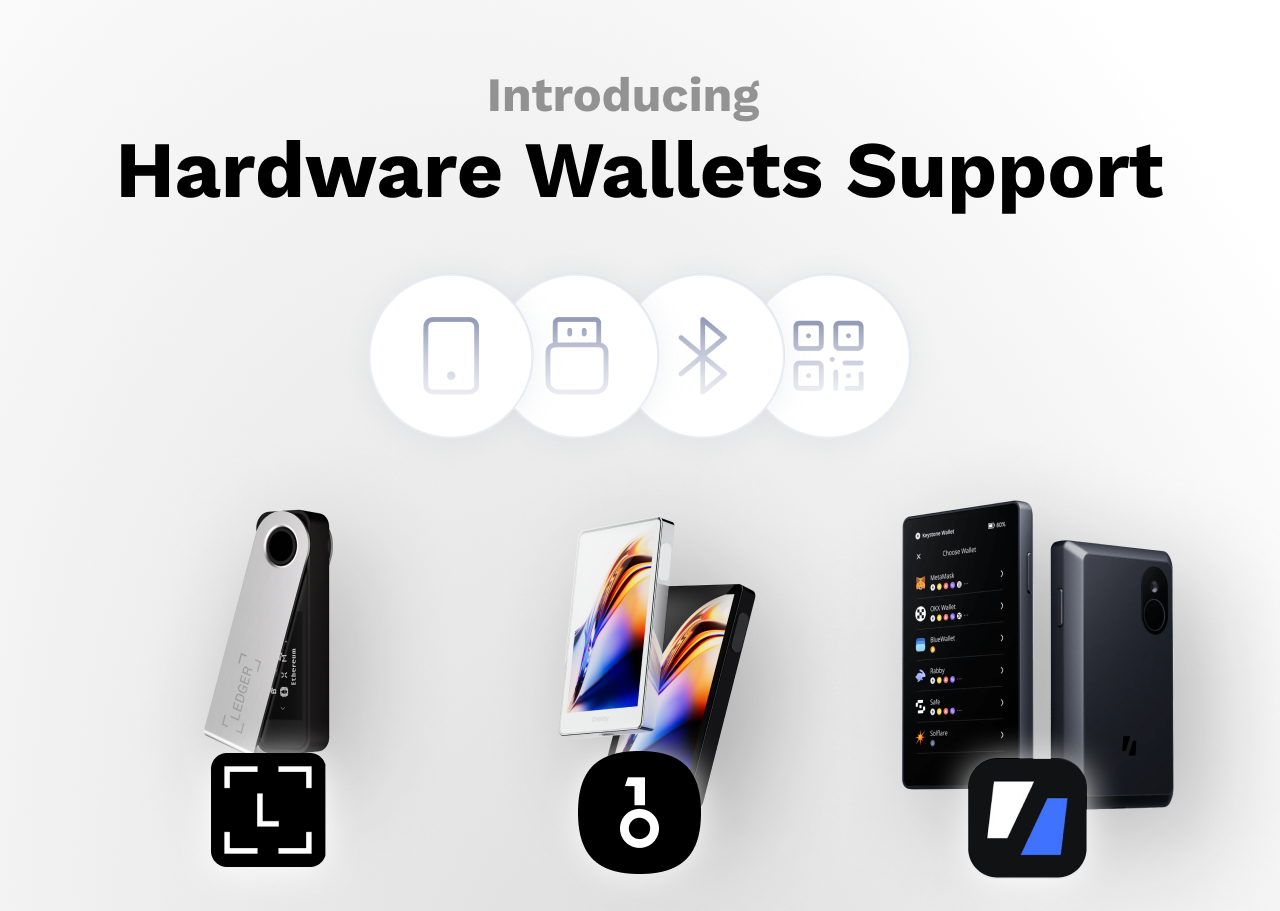
Suiet is compatible with three major hardware wallets: [Ledger](https://www.ledger.com/), [OneKey](https://onekey.so), and [Keystone](https://keyst.one/). However, due to Ledger's incomplete support for Sui and suboptimal user experience, we recommend using either OneKey or Keystone with Suiet for the best results.
Download and install the [latest version of Ledger Live](https://www.ledger.com/ledger-live)
Install the Sui app on your Ledger device
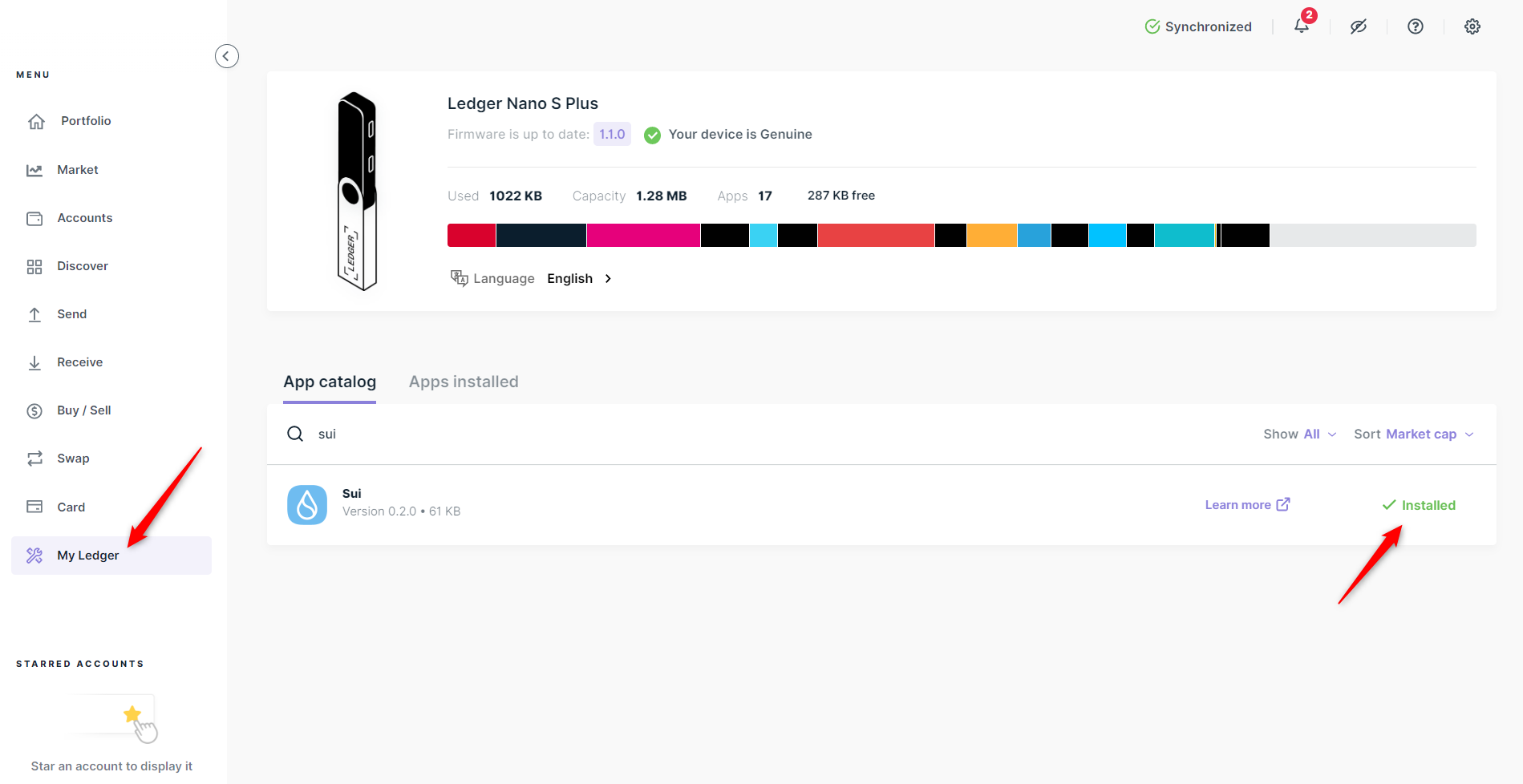
1. Open My Ledger in Ledger Live.
2. Connect and unlock your Ledger device.
3. If asked, allow My Ledger on your Ledger device.
4. Find Sui in the app catalog.
5. Click the Install button of the app.
To use hardware wallet on Suiet, please ensure you're running Suiet version
0.3.0 or higher.
Suiet is compatible with three major hardware wallets: [Ledger](https://www.ledger.com/), [OneKey](https://onekey.so), and [Keystone](https://keyst.one/). However, due to Ledger's incomplete support for Sui and suboptimal user experience, we recommend using either OneKey or Keystone with Suiet for the best results.
Download and install the [latest version of Ledger Live](https://www.ledger.com/ledger-live)
Install the Sui app on your Ledger device
1. Open My Ledger in Ledger Live.
2. Connect and unlock your Ledger device.
3. If asked, allow My Ledger on your Ledger device.
4. Find Sui in the app catalog.
5. Click the Install button of the app.
 Because Ledger does not support parsing the transaction data, you need to enable blind signing on Ledger to approve transactions.
1. Open Sui on your ledger device
2. Go to settings
3. Enable blind signing
Make sure you have installed Suiet([https://suiet.app](https://suiet.app))
1. Click Import, then choose Import from hardware wallet
2. Click Ledger
3. Connect and unlock your Ledger device, **and open Sui app on your ledger device**
4. Choose your device on your browser
5. Choose accounts to import
Suiet haven't support OneKey's passphrase feature, if you've enabled passphrase, you will need to disable it before connecting to Suiet
Open and set up your OneKey device following the instructions
Make sure you have installed Suiet([https://suiet.app](https://suiet.app))
1. Click Import, then choose Import from hardware wallet
2. Click OneKey
3. Connect and unlock your OneKey device
4. Choose your device on your browser
5. Choose accounts to import
Keystone haven't release the firmware with Suiet support, please wait until Keystone offical announcement, we are expect Keystone to release the firmware in early October, 2024.
Open and set up your Keystone device following the instructions, please ensure you've upgraded to [latest firmware](https://keyst.one/firmware)
Make sure you have installed Suiet([https://suiet.app](https://suiet.app))
1. Click Import, then choose Import from hardware wallet
2. Click Keystone
3. Unlock your Keystone device
4. Tap **\[...]** on the main page, and tap **Connect Software Wallet**, and select **Suiet app**
5. **Please click on the QR code to view it in full screen; otherwise, it may not work properly**
6. Scan the QR code on device to your browser camera
7. Choose accounts to import
Because Ledger does not support parsing the transaction data, you need to enable blind signing on Ledger to approve transactions.
1. Open Sui on your ledger device
2. Go to settings
3. Enable blind signing
Make sure you have installed Suiet([https://suiet.app](https://suiet.app))
1. Click Import, then choose Import from hardware wallet
2. Click Ledger
3. Connect and unlock your Ledger device, **and open Sui app on your ledger device**
4. Choose your device on your browser
5. Choose accounts to import
Suiet haven't support OneKey's passphrase feature, if you've enabled passphrase, you will need to disable it before connecting to Suiet
Open and set up your OneKey device following the instructions
Make sure you have installed Suiet([https://suiet.app](https://suiet.app))
1. Click Import, then choose Import from hardware wallet
2. Click OneKey
3. Connect and unlock your OneKey device
4. Choose your device on your browser
5. Choose accounts to import
Keystone haven't release the firmware with Suiet support, please wait until Keystone offical announcement, we are expect Keystone to release the firmware in early October, 2024.
Open and set up your Keystone device following the instructions, please ensure you've upgraded to [latest firmware](https://keyst.one/firmware)
Make sure you have installed Suiet([https://suiet.app](https://suiet.app))
1. Click Import, then choose Import from hardware wallet
2. Click Keystone
3. Unlock your Keystone device
4. Tap **\[...]** on the main page, and tap **Connect Software Wallet**, and select **Suiet app**
5. **Please click on the QR code to view it in full screen; otherwise, it may not work properly**
6. Scan the QR code on device to your browser camera
7. Choose accounts to import